Rosemount™ 928 Wireless Gas Monitor

Quick setup guide for theQuick Setup

with Rosemount™ 628 Sensor Platform
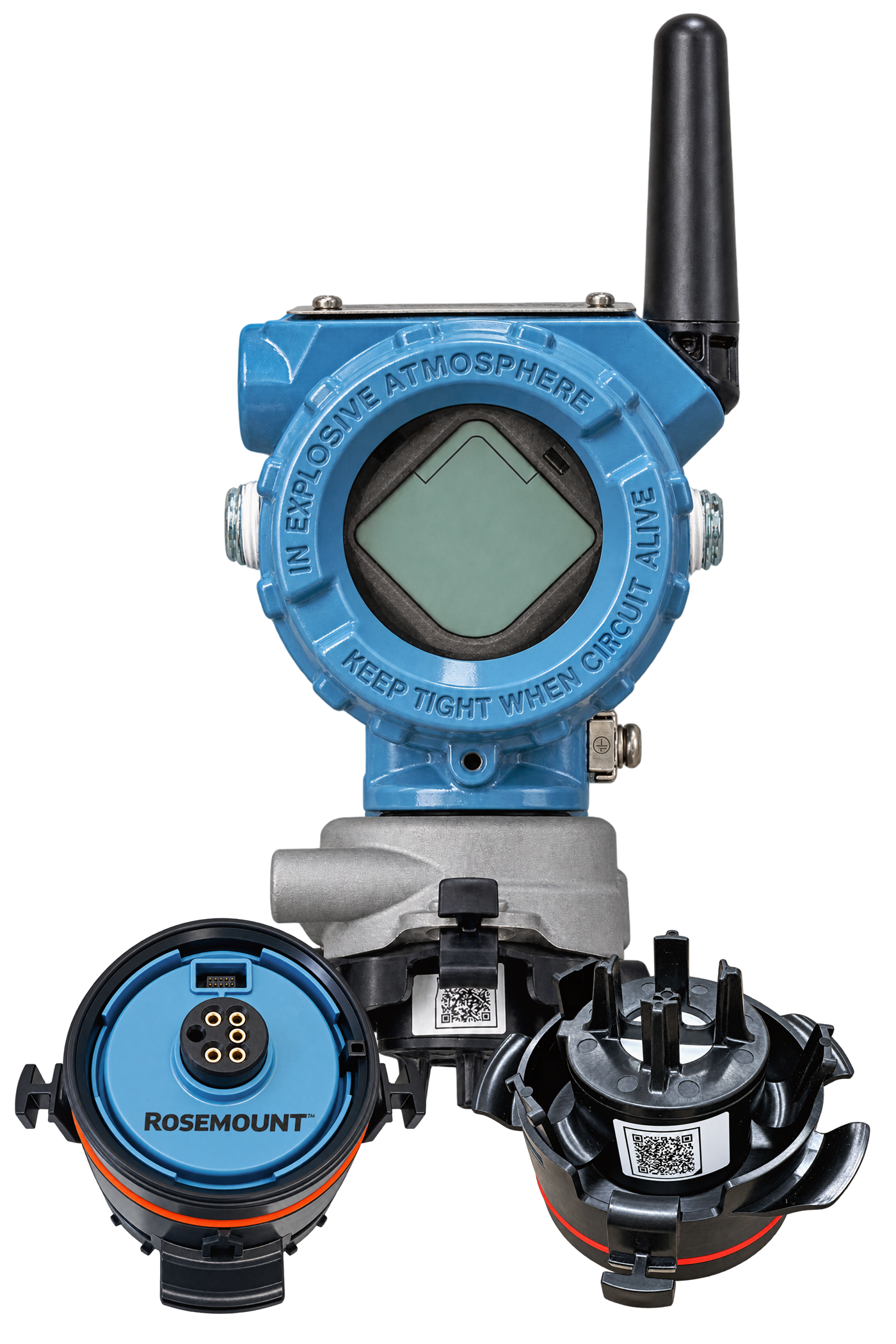
Rosemount 928 Wireless Gas Monitor and sensor modules

Step 1

Initialization

Make sure you have an AMS Trex Device Communicator.

Before configuration, ensure the TREX software is up to date and the Rosemount 928 device description supports Device Revision 2.
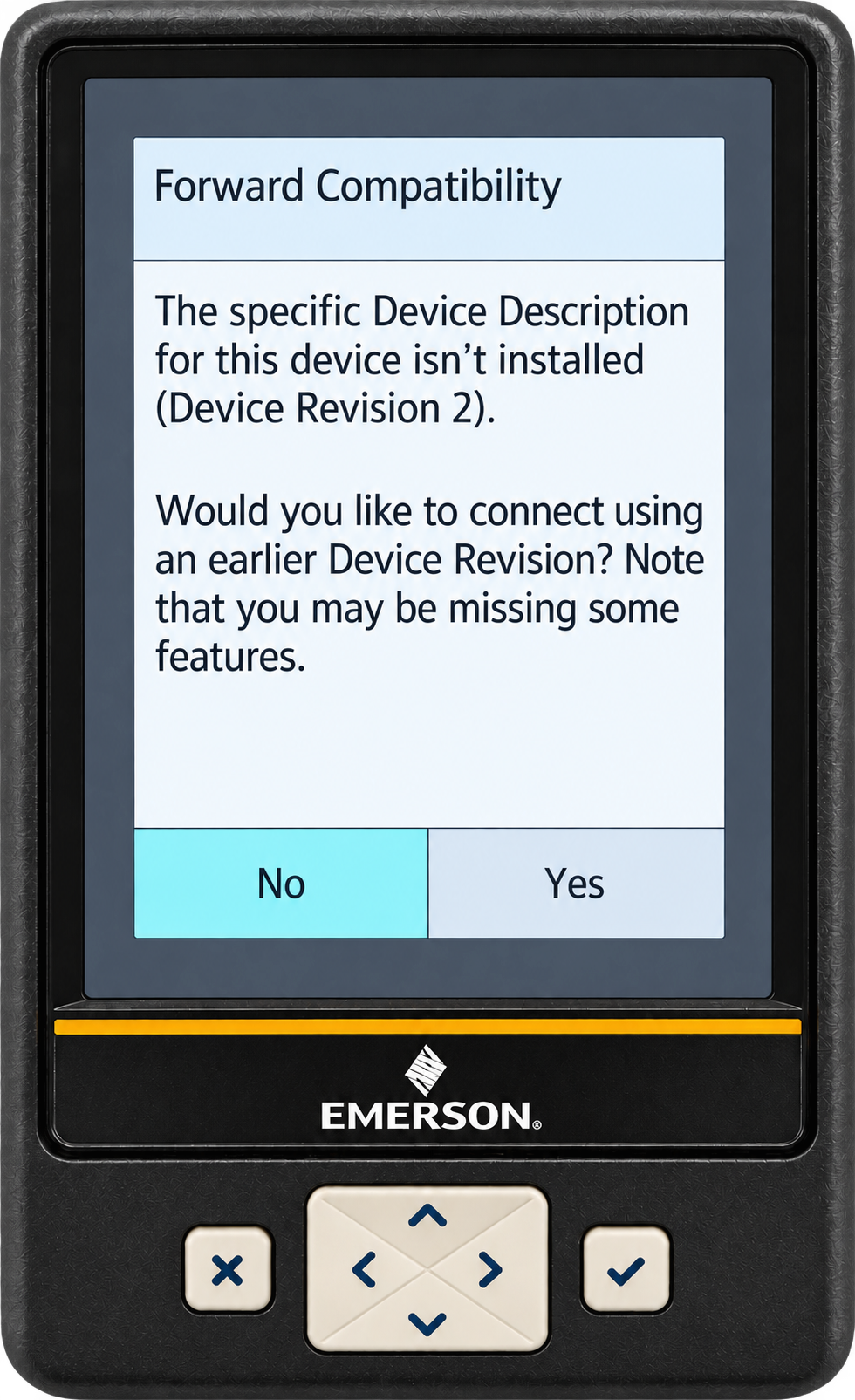
AMS Trex warning that the device description for Device Revision 2 is not installed

Update required

Press
for help.

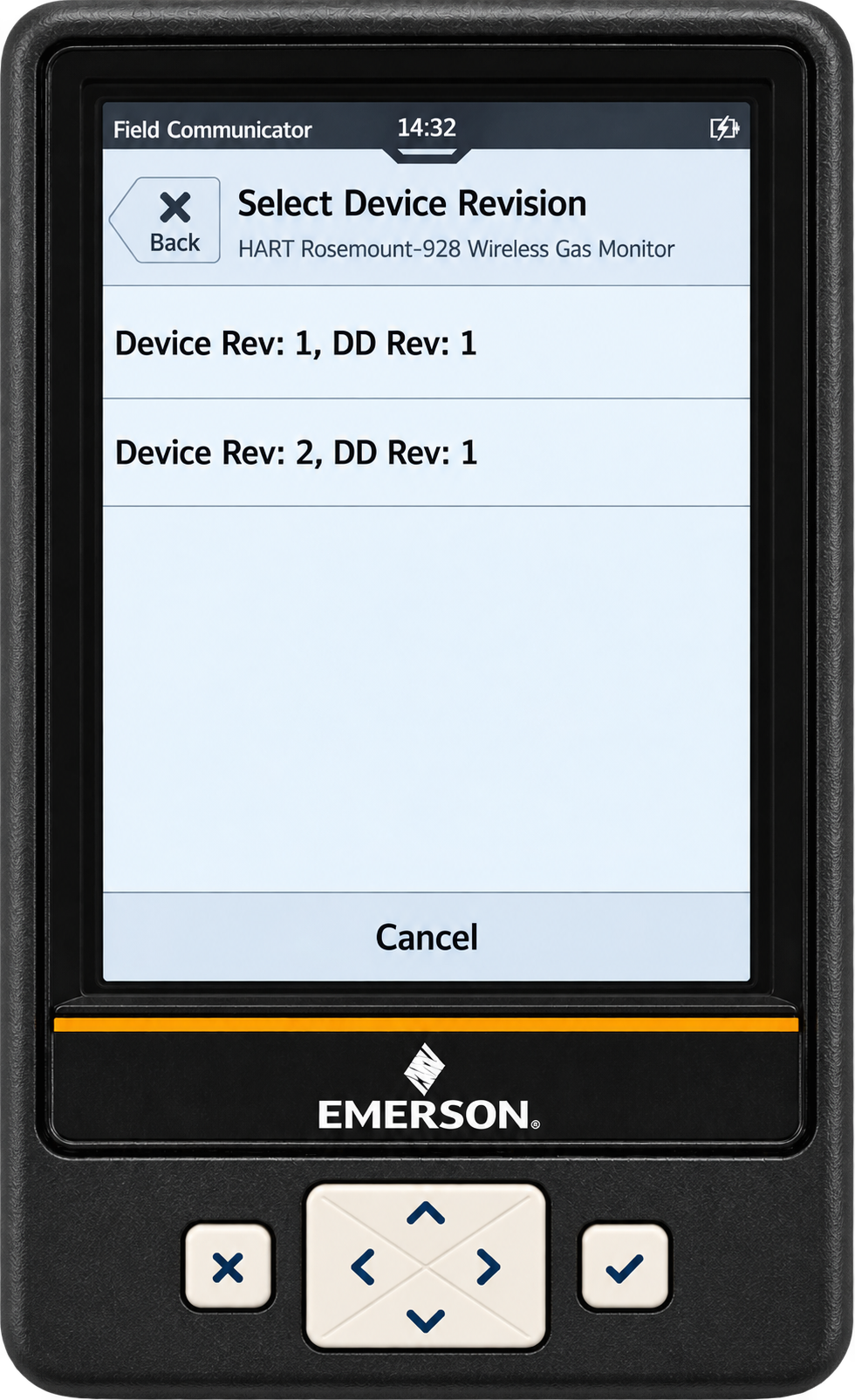
AMS Trex screen listing Rosemount 928 Device Rev: 1, DD Rev: 1 and Device Rev: 2, DD Rev: 1

Ready to configure

If your TREX is ready
press Continue.

Step 2

Install the sensor

Rosemount™ 628 Sensor Platform

Align the sensor with the socket and press it into place.
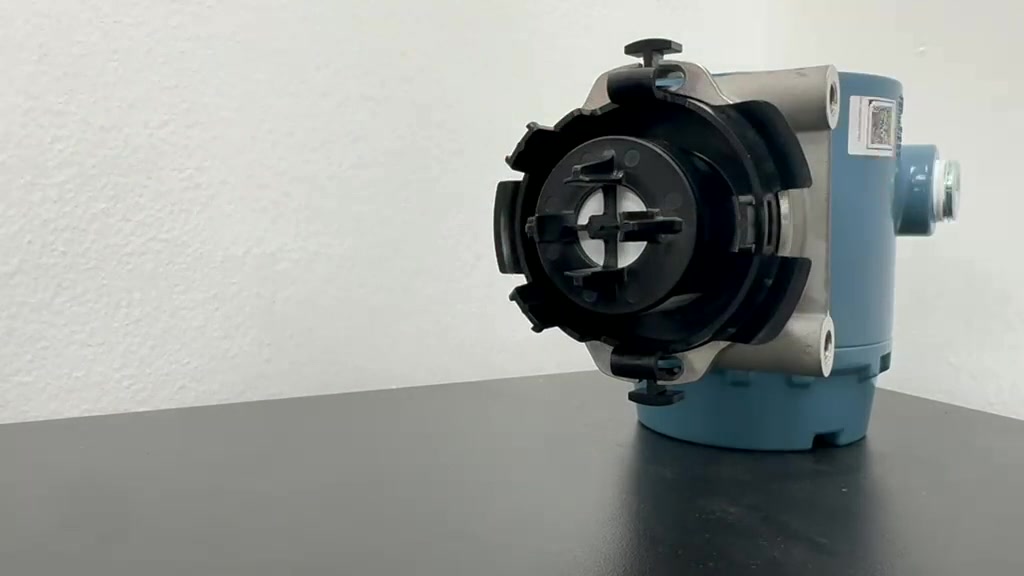
Rosemount 628 sensor installed in the Rosemount 928 socket

Step 3

Trex connection

Connect the leads, then insert the battery.
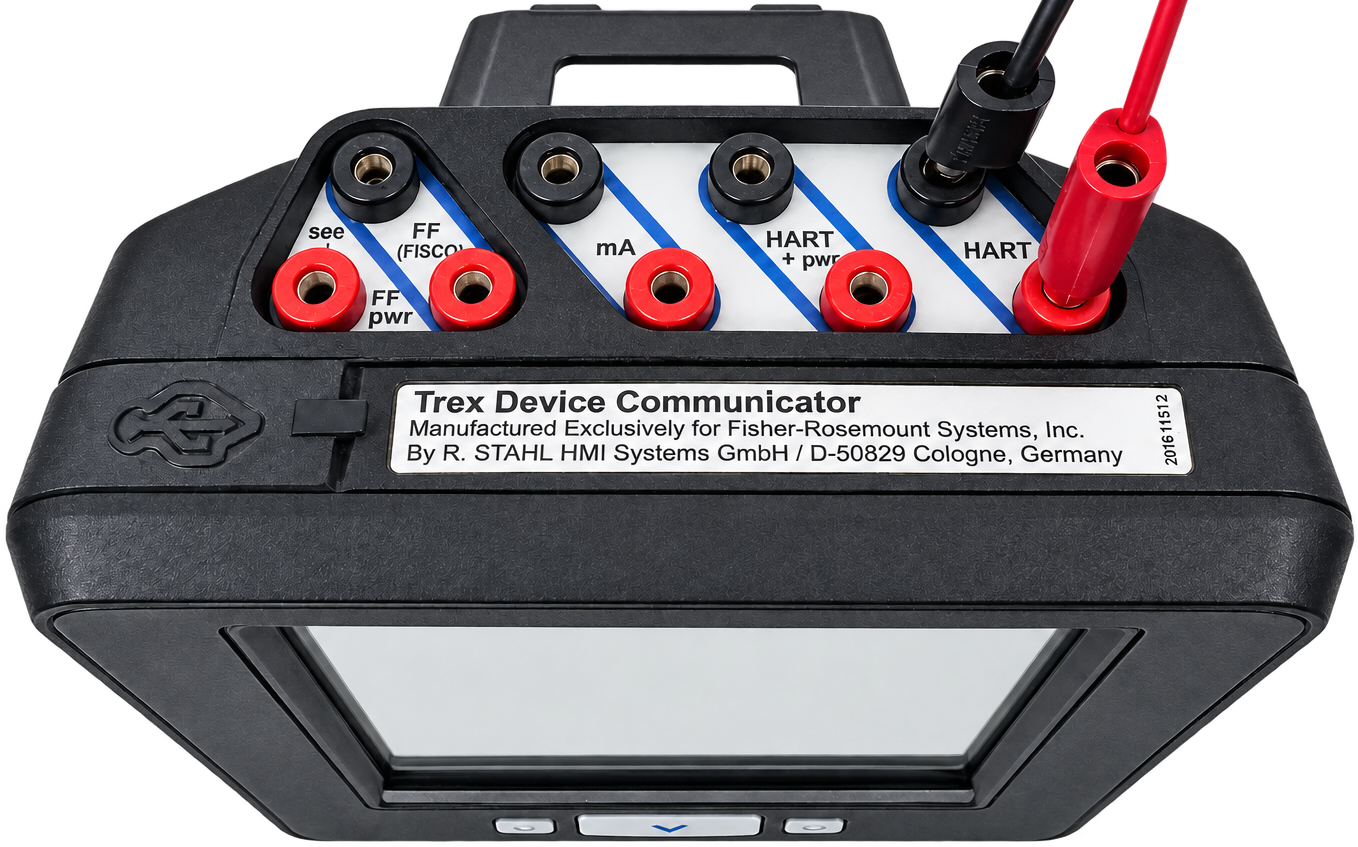
Connection step 1 · TREX
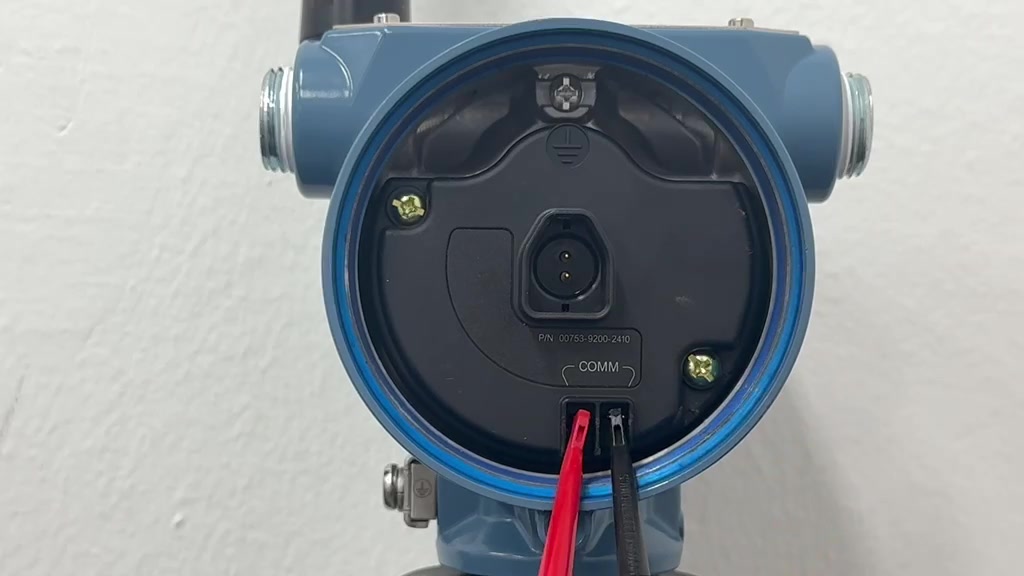
TREX communication leads connected to the HART terminals
Communication leads connected to the module

Step 4

Open Field Communicator

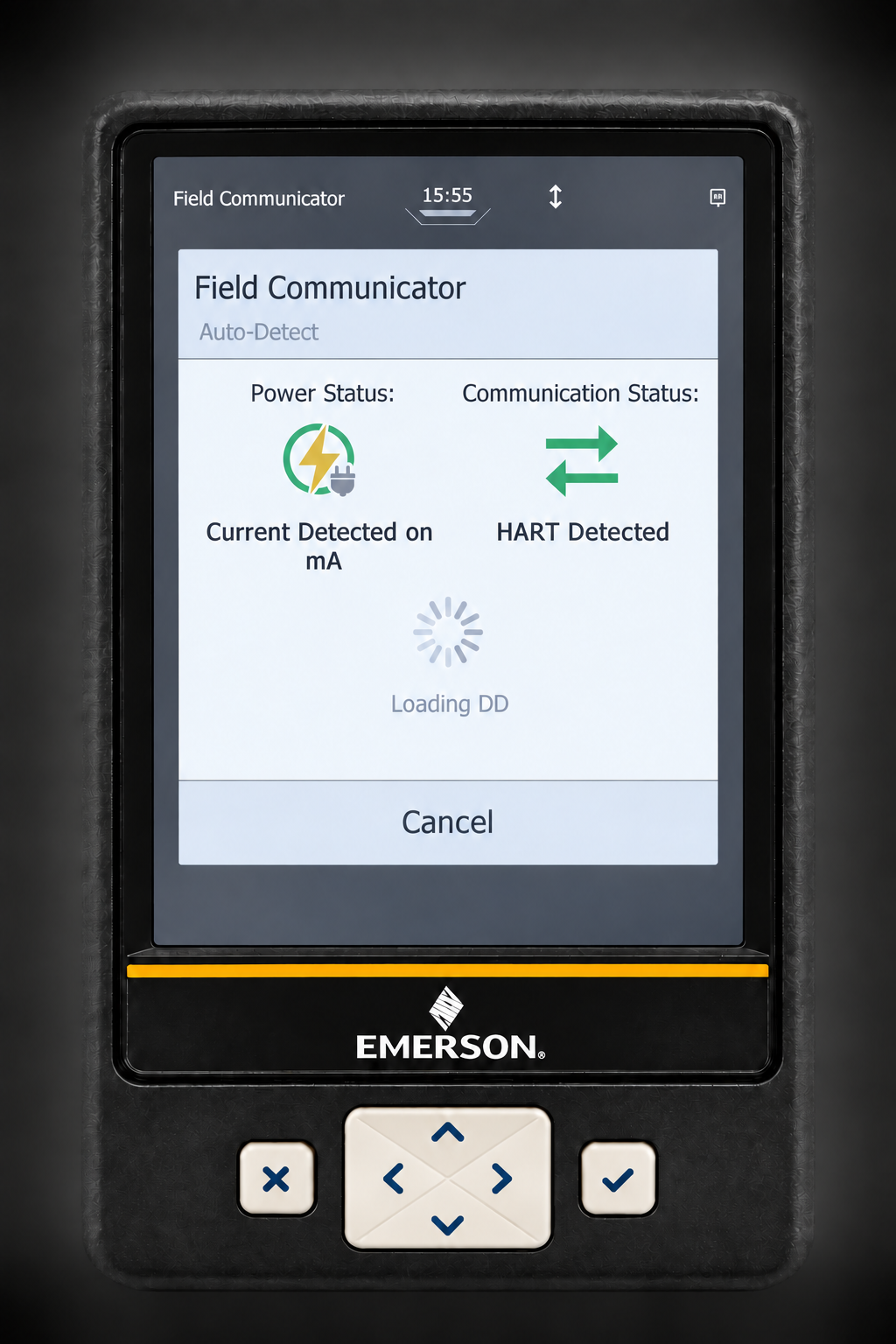
On TREX Home, press Field Communicator *and wait for the Device Overview screen to open.
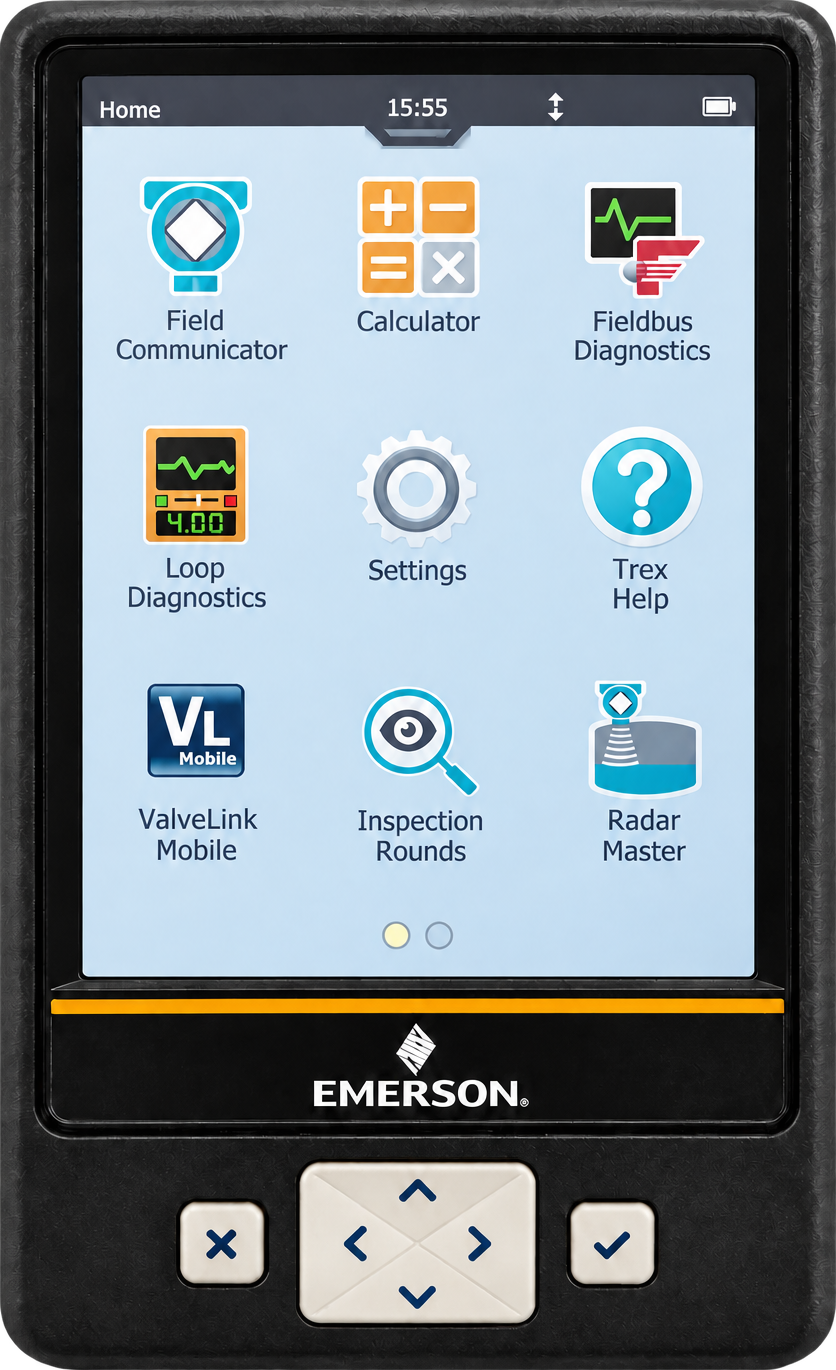
TREX demonstration: press Field Communicator, wait for Loading DD, then view the device Overview screen

Step 5

Sensor identification

On the Overview screen, press the Configure icon.
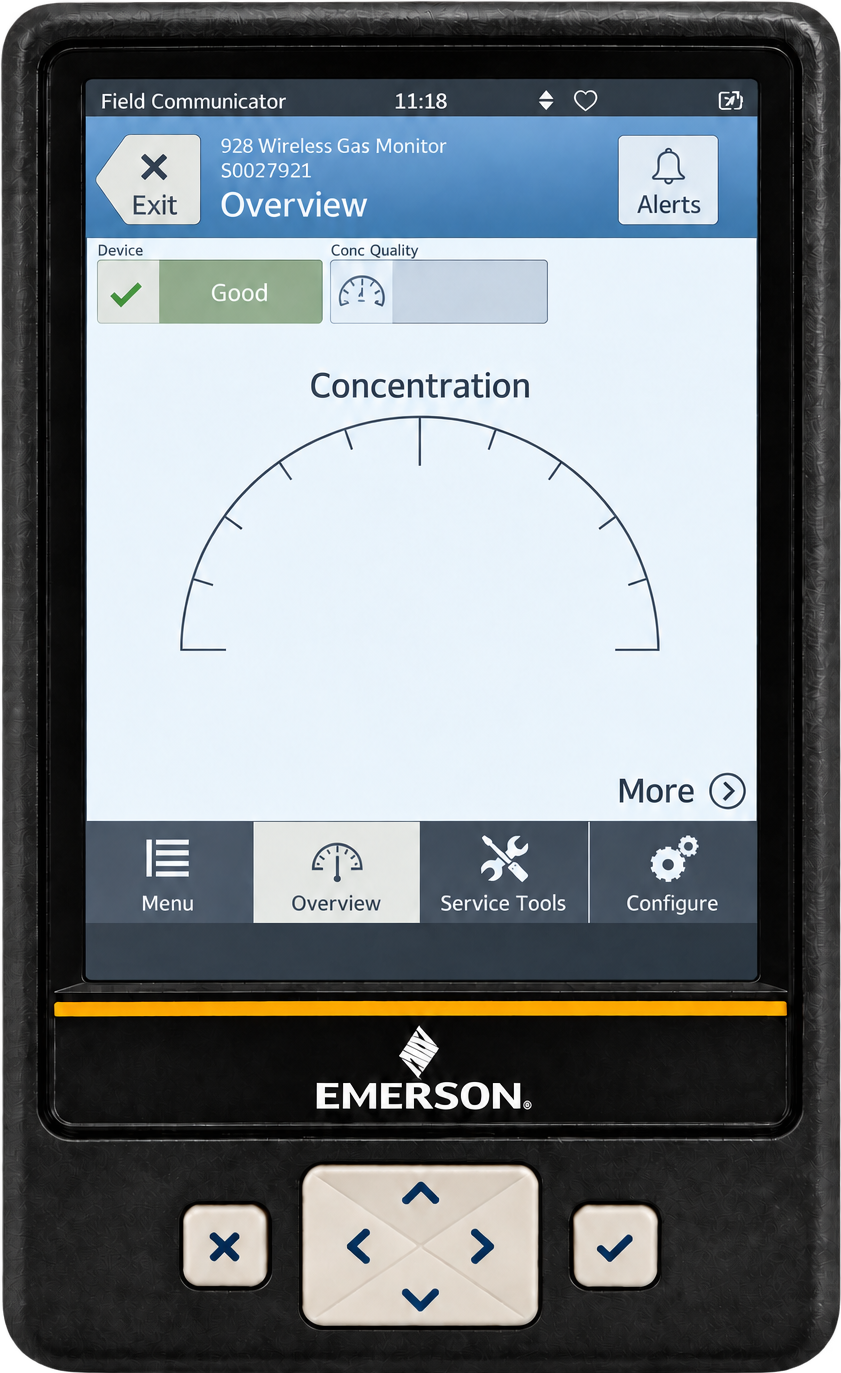
Rosemount 928 Overview screen demonstrating a blue press on Configure

Step 6

Press Guided Setup

On the Configure screen, press Guided Setup.

TREX Configure screen with Guided Setup highlighted in blue

Step 7

Press Basic Setup

On the Guided Setup screen, press Basic Setup.

TREX Guided Setup screen with Basic Setup highlighted in blue

Step 8

Device information

Wait for Basic Setup to read the device information.

Review the displayed details, then press Next.

TREX Device Information screen with Next highlighted in blue

Step 9

Press OK to finish setup

Wait for the configuration to save.

When the TREX shows Operation completed successfully, press OK.

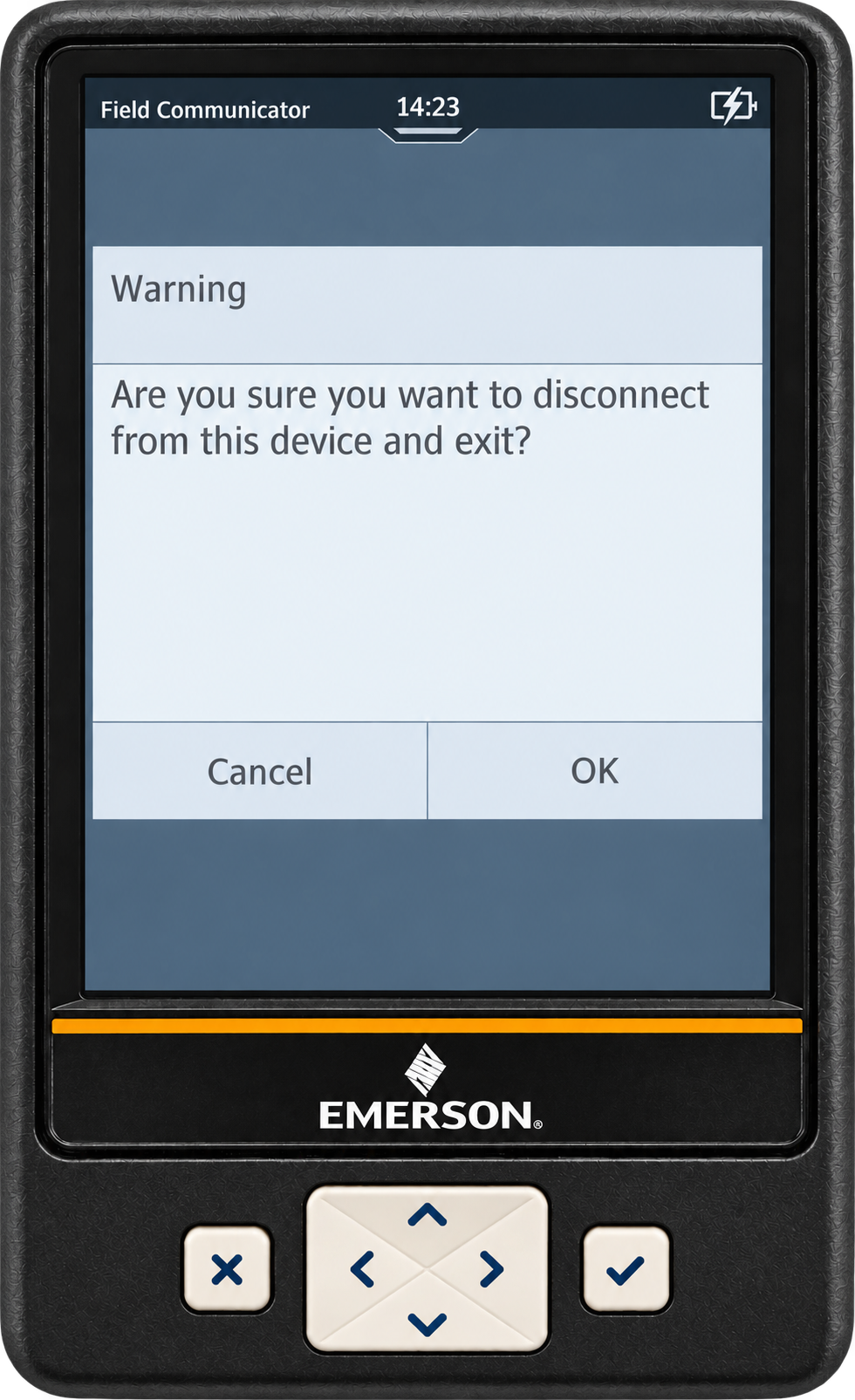
TREX demonstration: complete Basic Setup, exit, disconnect and return Home

Step 10

Setup Done!

Congratulations! You’ve completed the setup.

Confirm your monitor shows a similar screen with a % LEL reading.
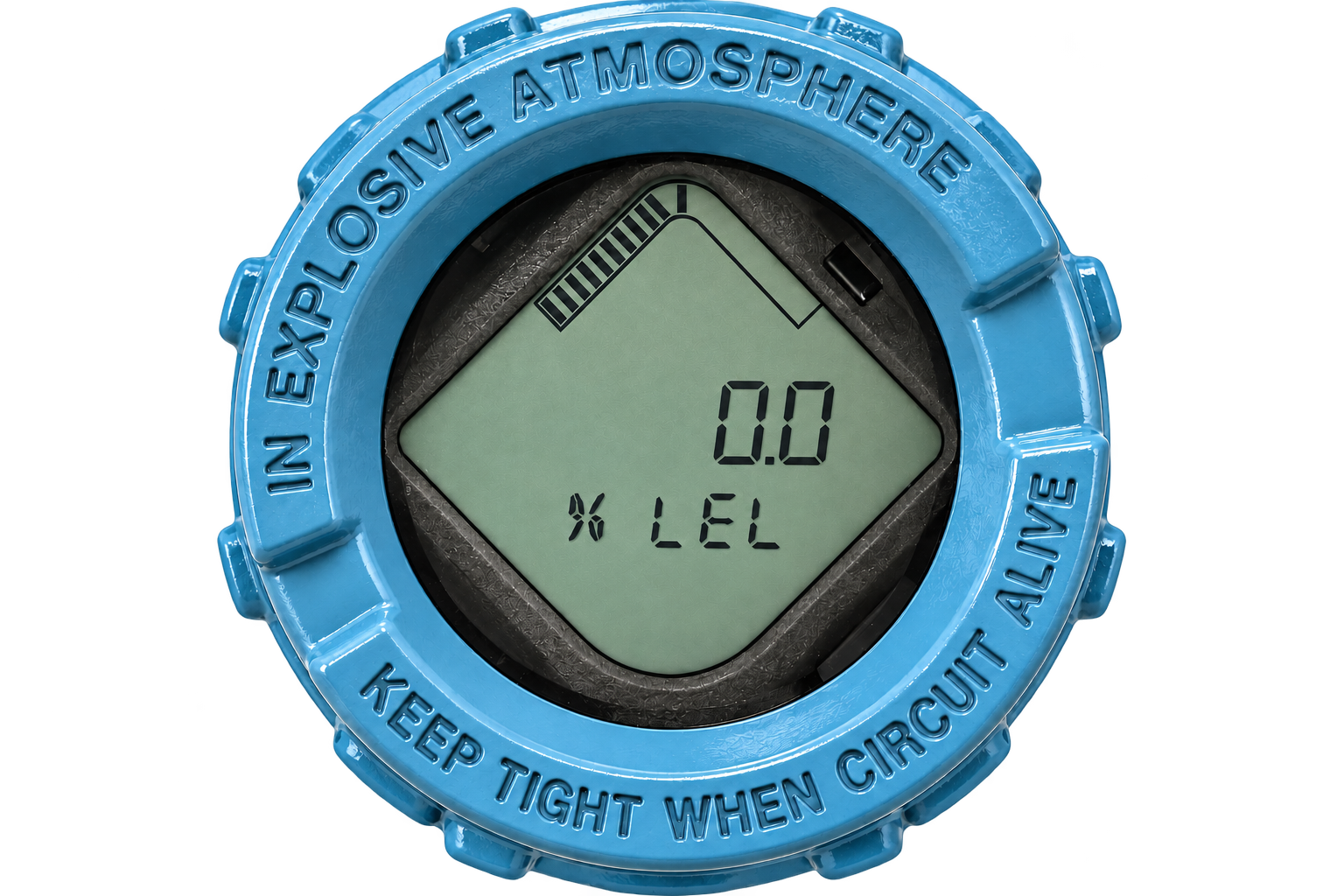
Rosemount gas monitor display showing 0.0 percent LEL; illustrative image composed from supplied product photographs

AMS Trex · Rosemount 928 DD

Upgrade Instruction

Install the Rosemount 928 device description (DD) on your TREX in six steps.

Download the DD package

Download the Rosemount 928 Device Description ZIP from Emerson.com to your PC.

Emerson DD packageZIP on PC

AMS Trex · DD library

Check DD Version

Follow the TREX screens to check the available device and DD revisions.